《Poly Bridge》全關(guān)卡新手指南圖文攻略
《Poly Bridge》由獨(dú)立開(kāi)發(fā)團(tuán)隊(duì)Dry Cactus打造的模擬益智游戲,非常考驗(yàn)玩家物理和思維邏輯能力,那么到底要如何造橋呢?本攻略為大家?guī)?lái)游戲的新手指南和全關(guān)卡玩法技巧圖解,玩家們可以看到橋梁建造完成后車(chē)輛安全通過(guò)的狀態(tài)動(dòng)圖。
PS:雖然Steam商店頁(yè)面顯示游戲沒(méi)有中文,不過(guò)實(shí)際上游戲中是可以設(shè)置中文的,需要的玩家請(qǐng)看這里:《Poly Bridge》中文設(shè)置方法
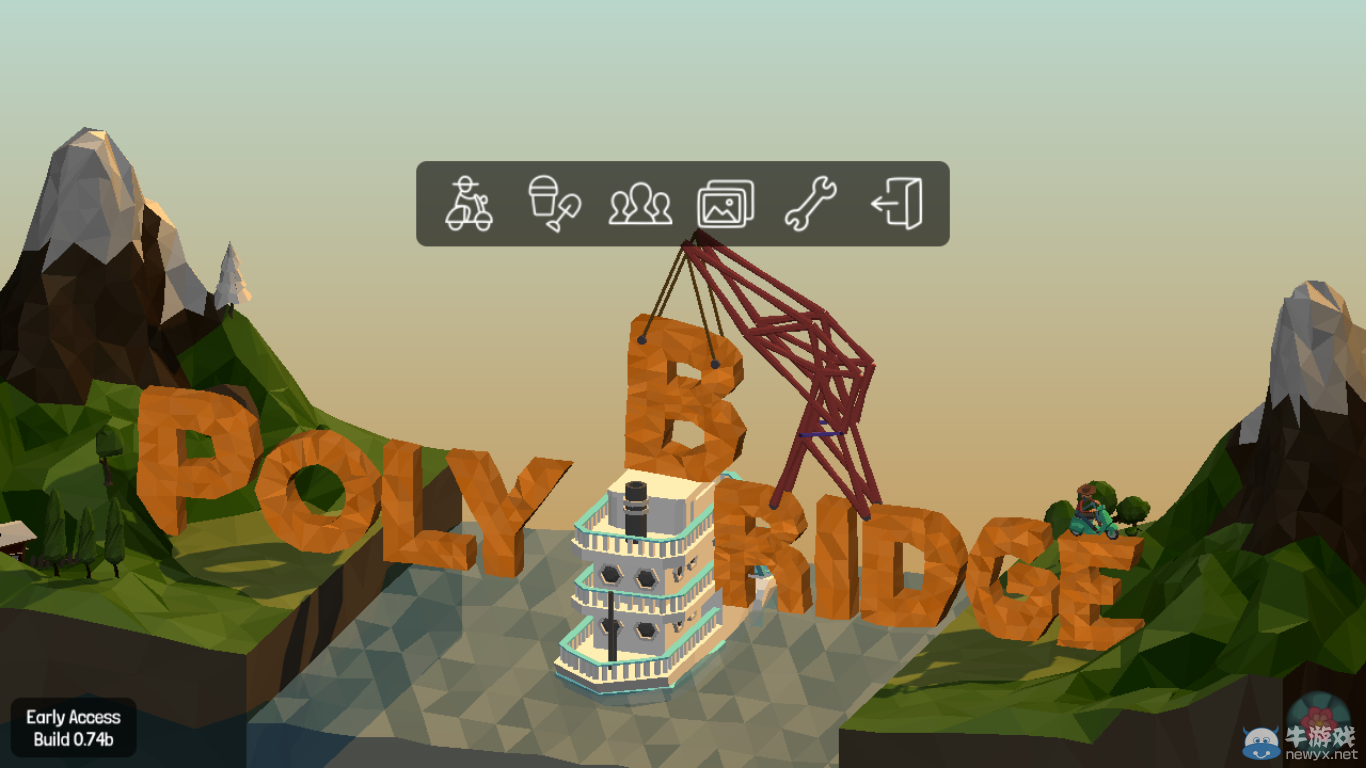
游戲主界面
Poly Bridge官方指南新手必備
1.1 - Main Menu目錄
1.1.1 - World Map世界地圖
· The world map allows you to navigate the various worldsand shows your progress through the campaign.跟著世界地圖的導(dǎo)航,循序漸進(jìn),由簡(jiǎn)入繁,不斷進(jìn)步。
· A: Displays your progress through each world and howmany levels you have completed under budget. A顯示符合預(yù)算的項(xiàng)目及其進(jìn)度。
· B: The scooter indicates your current level. B摩托車(chē)走到哪兒,哪兒就是我的家。
· C: A yellow square indicates a level completedover-budget C黃色方格表示項(xiàng)目超出預(yù)算。
· D: A green square indicates a level completedunder-budget. D綠色方格表示項(xiàng)目完成符合預(yù)算。
· E: You may replay the tutorial if you need arefresher. E重播教程,溫故而知新。
· F: Return to the main menu. F回到主目錄。

關(guān)卡地圖
1.1.2 - Level Menu 項(xiàng)目菜單
Load: Browse and loadpreviously saved bridges.加載:瀏覽加載舊檔。
Save: Save your bridge. 保存。
Feedback: See 10 - Feedback/Bug Reports. 反饋。
Options: See 2 - Options. 選項(xiàng)。
Exit: Returns you to the WorldMap. 退出。
1.2 - Controls 操作
PS:詳細(xì)的中文鍵位操作請(qǐng)看這里:點(diǎn)擊進(jìn)入
1.2.1 - Mouse 鼠標(biāo)
Left Click: Select orDraw.左鍵選擇拖動(dòng)
Right Click: Deselectcurrent material or Delete with click-and-drag.右鍵取消選擇或者點(diǎn)擊并拖動(dòng)進(jìn)行刪除。
Double Click: Changes ajoint to a split-joint, or vice-versa.雙擊加入結(jié)合點(diǎn),再次雙擊取消。
Wheel: Zoom in or out.鼠標(biāo)滾輪縮放界面。
Middle Click: Brings upthe tool wheel.中鍵彈出工具菜單。
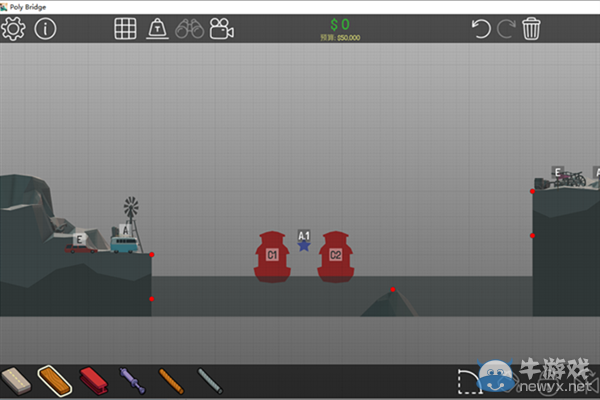
游戲界面
1.2.2 - Keyboard 鍵盤(pán)
Space: Run simulation. 空格鍵運(yùn)行運(yùn)動(dòng)仿真。
ShiftClick: Click-and-drag a joint to adjust its location*. Pans the camerawhile in 3D.
Shift+單擊:選擇并拖動(dòng)調(diào)整關(guān)節(jié)點(diǎn);3D狀態(tài)時(shí),按住Shift拖動(dòng)調(diào)整視角。
Alt Click: Create orremove a split joint. Alt +單擊:創(chuàng)建或者刪除一個(gè)結(jié)合點(diǎn)。(無(wú)效)
Ctrl: Delete modifier,click-and-drag.Ctrl+框選:Ctrl+框選,可以選擇批量刪除或者復(fù)制或者剪切。
J: While hovering over ajoint, pressing J changes a joint to a split-joint, or vice-versa.等同于鼠標(biāo)雙擊。
P: Pauses/Unpauses theSimulation. P:運(yùn)動(dòng)仿真暫停。
T: Brings up the ToolWheel. T:彈出工具菜單等同于鼠標(biāo)中鍵。
Z: Undoes last action.Repeatable. Z:撤消上次操作。
1: Selects road. 1選擇鋪路
2: Selects wood. 2選擇木材
3: Selects steel. 3選擇鋼鐵
4: Selects hydraulics. 4選擇液壓工具
5: Selects cable. 5選擇鋼纜
6: Selects suspension. 6選擇懸索橋
1.3 - 1.4 界面說(shuō)明:
A項(xiàng)目菜單 B預(yù)算 C材料限制 D仿真速度 E應(yīng)力(紅綠色) F網(wǎng)格
a預(yù)算不超出50%,可以暫時(shí)通過(guò).
b車(chē)輛順序:A車(chē)必須先通過(guò)A旗,B車(chē)才可以開(kāi)動(dòng)。
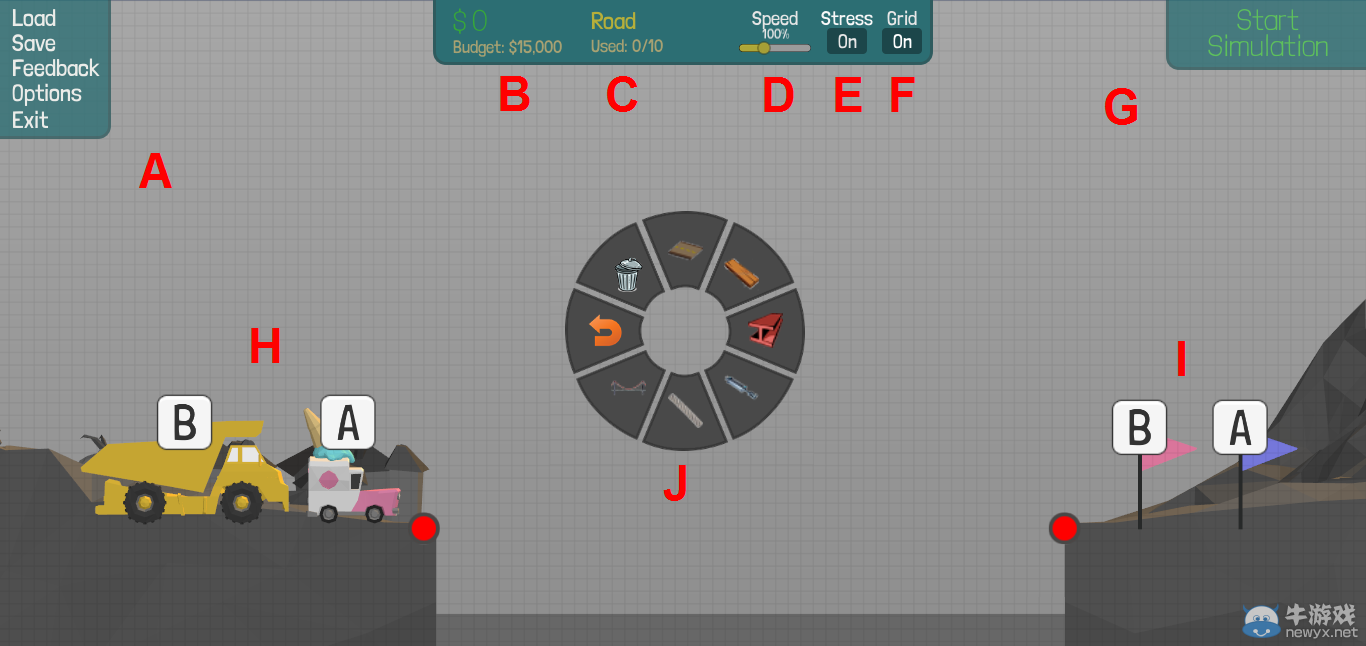
界面示意圖
1.5 - Simulator運(yùn)動(dòng)仿真:
The simulator models your design in 3D, with gravity. Vehicles attempt to cross your bridge and boats travel down the river in a redetermined order. Adjusting the speed modifier adjusts the speed of the simulation, this does not affect speed of vehicles relative to the simulation. With stress view activated you can see the live load on your bridge. See 1.5.1 - Stress View.
運(yùn)動(dòng)仿真顯示的是在重力的作用下模型的狀態(tài)。車(chē)和船都會(huì)有序通過(guò),而調(diào)整仿真速度并不會(huì)影響仿真的結(jié)果。通過(guò)壓力的顯示可以看出橋梁的活載荷。
1.5.1 - Stress View應(yīng)力狀態(tài)
Stress view will display the live load on your bridge, from Low (Green) to Medium (Yellow) to High (Red), during a simulation. Stress view can be best used by adjusting the simulation speed and viewing your replays. See 7 - Replays, and 5.7 - Detecting Weak Points for more info.
應(yīng)力視圖將顯示你的橋上的活荷載,從低(綠色)到中等(黃色)到高(紅色)模擬應(yīng)力狀態(tài)。通過(guò)調(diào)整模擬速度和查看錄像可以更好的觀察應(yīng)力狀態(tài)。后文詳細(xì)解釋如何回放錄像來(lái)檢查薄弱環(huán)節(jié)。
- 本文導(dǎo)航
- 第1頁(yè):目錄/操作/界面/狀態(tài)說(shuō)明 第2頁(yè):材料屬性/車(chē)輛/船舶說(shuō)明 第3頁(yè):節(jié)點(diǎn)/結(jié)構(gòu)/環(huán)節(jié)/橋型說(shuō)明 第4頁(yè):第一關(guān):高山牧場(chǎng) 第5頁(yè):第二關(guān):沙漠風(fēng)暴 第6頁(yè):第三關(guān):雪地漂移 第7頁(yè):第四關(guān):遠(yuǎn)古遺跡 第8頁(yè):第五關(guān):80年代樂(lè)園 第9頁(yè):第六關(guān):禪境花園
-

《Poly Bridge》全關(guān)卡新手指南圖文攻略
瀏覽量:02016-07-06
-
《Poly bridge》第一關(guān)高山牧場(chǎng)圖文攻略
瀏覽量:02016-07-06
-
《Poly Bridge》設(shè)計(jì)關(guān)卡及游戲性試玩心得
瀏覽量:02016-07-06
-
《Poly Bridge》第一關(guān)全關(guān)卡最省錢(qián)過(guò)關(guān)攻略
瀏覽量:02016-07-06
-
《Poly Bridge》按鍵操作指南
瀏覽量:02016-07-05
-
《Poly Bridge》中文設(shè)置方法
瀏覽量:02016-07-05